
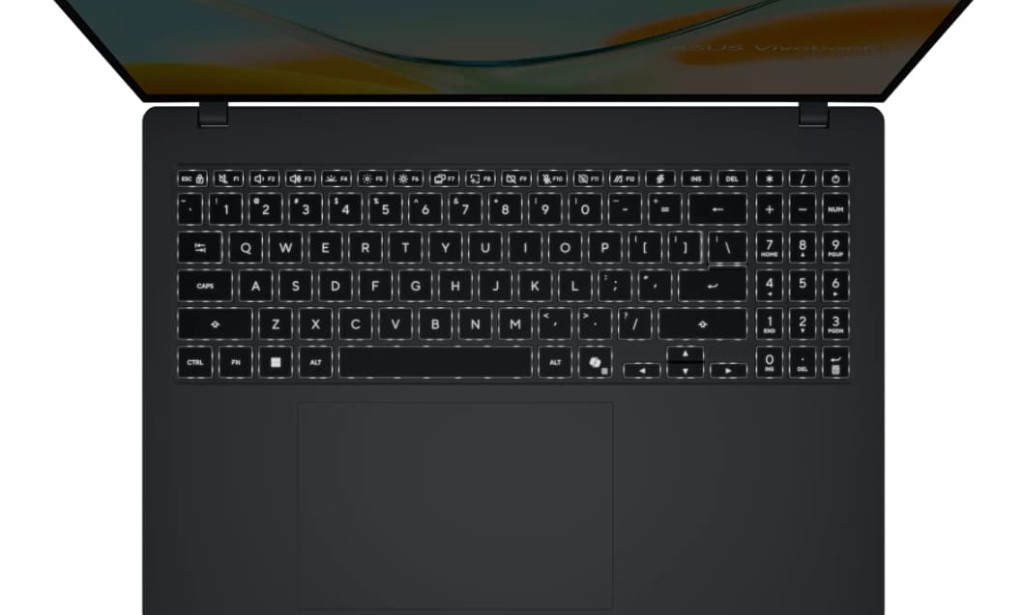
A laptop keyboard that stops responding whether it is a single key, a row of keys, or the entire keyboard is one of the more disruptive hardware problems you can run into. Before assuming the keyboard is physically broken and needs replacing, there are several software and settings fixes that resolve the majority of keyboard issues on Windows laptops. This guide covers every fix in the correct order, starting from the simplest and moving toward the deeper registry-level solution.
Try These Basic Checks First
Before changing any settings, rule out the most common causes. If your laptop has a physical keyboard lock key usually labeled with a lock icon or combined with the F1-F12 row make sure it is not activated. Some laptops disable the keyboard entirely when this key is toggled on.
If you are using an external USB keyboard, disconnect it and check whether the built-in keyboard works on its own. Windows occasionally prioritizes an external input device in a way that creates conflicts. Restarting the laptop solves this in many cases a full restart, not sleep or hibernate because it clears temporary driver states that cause keys to stop responding after extended use.
Check Keyboard Settings in Windows 11
Open Settings by pressing the Windows key and I together. Go to Accessibility, then scroll down and select Keyboard. Check that Filter Keys is turned off. Filter Keys is an accessibility feature that tells Windows to ignore brief or repeated keystrokes, which makes the keyboard appear unresponsive when it is actually working correctly. Turning it off immediately restores normal keyboard behavior for most users who encounter this issue.
Also check that Sticky Keys and Toggle Keys are both turned off in the same menu. These features change how the keyboard registers input and can cause unexpected behavior that resembles a hardware fault.
Update or Reinstall the Keyboard Driver
Right-click the Start button and select Device Manager. Expand the Keyboards section. You will see one or more entries typically Standard PS/2 Keyboard or a manufacturer-specific name. Right-click the keyboard entry and select Update driver, then choose Search automatically for drivers. If Windows finds an updated driver, install it and restart.
If the update does not help, right-click the same entry again and select Uninstall device. Restart the laptop. Windows will automatically reinstall the keyboard driver during startup. This process takes about a minute and resolves driver corruption issues that cause keys to stop registering input.
Run the Keyboard Troubleshooter
Open Settings, go to System, then Troubleshoot, then Other troubleshooters. Find Keyboard in the list and click Run. Windows will scan for common configuration problems and attempt to fix them automatically. This step catches issues that are not immediately obvious from the Device Manager view, including driver signing problems and service conflicts.
Fix the I8042PRT Registry Entry, The Most Effective Advanced Fix
If the steps above have not resolved the issue, the I8042PRT registry fix is the solution that works for the largest number of users with persistent keyboard problems on Windows 10 and Windows 11. The I8042PRT is the keyboard controller driver that manages communication between the hardware keyboard and Windows. When its registry Start value is incorrect, the keyboard driver fails to load properly at startup, causing keys to become unresponsive.
To fix it, press the Windows key and R together to open the Run dialog. Type regedit and press Enter. When prompted by User Account Control, click Yes to open the Registry Editor with administrator permissions.
In the Registry Editor address bar at the top, paste the following path exactly as written and press Enter:
HKEY_LOCAL_MACHINE\SYSTEM\CurrentControlSet\Services\i8042prt
On the right side of the Registry Editor, find the entry named Start. Double-click it to open the Edit DWORD dialog. The Value data field will show a number. Change it to 1 and click OK. Close the Registry Editor and restart the laptop.
The value 1 tells Windows to load the I8042PRT driver at system startup, which is the correct behavior. A value of 3 or 4 means the driver is loading manually or is disabled, which prevents the keyboard from functioning correctly. This single change resolves keyboard issues on a large number of Windows laptops where the driver has been incorrectly configured by a Windows update or a third-party software installation.
Check the Human Interface Device Service
Press the Windows key and R together, type services.msc, and press Enter. Scroll down the list and find Human Interface Device Service. Right-click it and select Properties. Set the Startup type to Automatic and make sure the service status shows Running. If it is stopped, click Start. Click OK and restart the laptop.
This service manages input from keyboards, mice, and other HID-compatible devices. If it is not running, Windows cannot process keyboard input correctly even when the hardware and drivers are functioning properly.
Check for Windows Updates
Open Settings, go to Windows Update, and install any pending updates. Microsoft regularly releases driver and firmware updates through Windows Update that address keyboard compatibility issues introduced by earlier updates. If a recent Windows update caused the keyboard to stop working, a subsequent patch may already be available that fixes it.
When the Problem Is Physical
If every software and registry fix has been applied and specific keys still do not respond, the issue is likely physical. Common physical causes include debris under the keycap blocking the switch contact, a loose ribbon cable connecting the keyboard to the motherboard, or a key switch that has failed mechanically.
Compressed air directed under the affected key resolves debris issues in many cases. A loose ribbon cable requires opening the laptop base, on most modern laptops this is a straightforward process but it does void the warranty on newer devices. If the laptop is still under warranty, contact the manufacturer's support line before attempting any internal repairs, as keyboard replacements are typically covered.
Which Fix Works Most Often
For laptops running Windows 11 where the keyboard stopped working after an update, the I8042PRT registry fix resolves the problem in the majority of cases. For keyboards that have never worked correctly since a fresh Windows installation, the Filter Keys setting and the HID service fix are the most common solutions. For individual keys that stopped responding, physical cleaning with compressed air is often all that is needed.
Important Notice
The steps provided in this guide are for informational purposes only. Editing the Windows Registry is an advanced process that carries risk. Incorrect changes to registry values can cause system instability, data loss, or prevent Windows from starting correctly. Always create a full system backup and a registry backup before making any changes. To back up the registry, open Registry Editor, click File, then Export, and save the file to a safe location.
Samzune and its contributors are not responsible for any damage, data loss, or system issues that may occur as a result of following the steps in this guide. If you are not comfortable editing the registry, consult a qualified technician before proceeding.

You must be logged in to post a comment.