
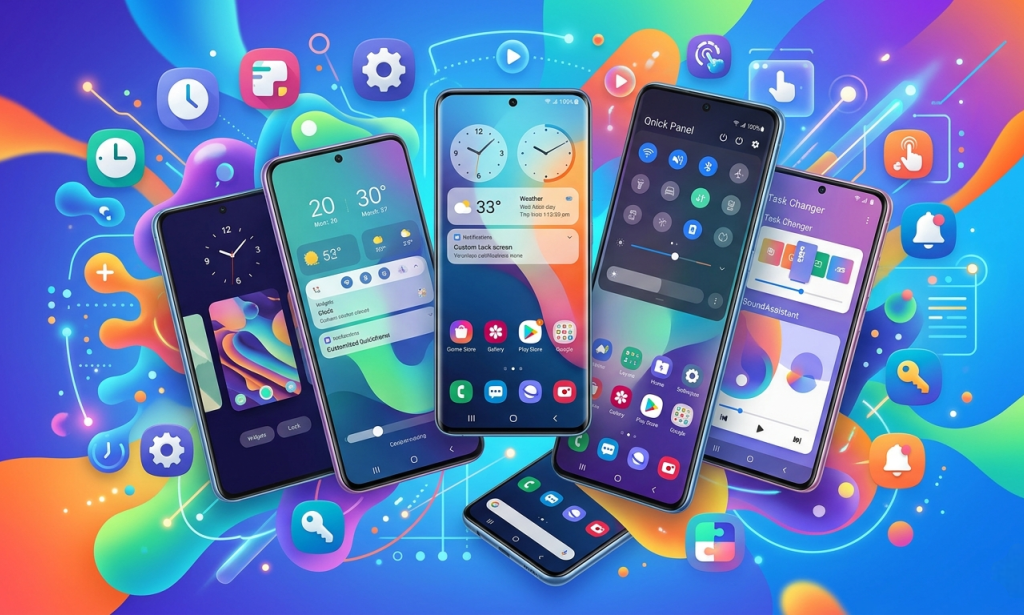
If you own a Samsung Galaxy phone, you already have access to one of the most powerful customization tools in the Android world and most people have no idea it exists. Good Lock is Samsung's official customization app that lets you reshape almost every aspect of One UI, from the lock screen and home screen to the notification panel, multitasking behavior, and even the keyboard. This guide walks you through everything you need to know to get started and make the most of it.
What Is Good Lock and Why Should You Use It?
Good Lock is a free app developed by Samsung that acts as a hub for a collection of customization modules. Each module targets a specific part of One UI and gives you granular control that the standard Settings menu simply does not offer. Whether you want to change how your lock screen looks, tweak animation speeds, or build a fully custom home screen layout, Good Lock has a module for it.
It is available for Galaxy devices running One UI 3.0 and above, and it works best on devices running One UI 6 or One UI 8.5 in 2026.
How to Download and Install Good Lock
Good Lock is not available on the Google Play Store in all regions. Here is the recommended way to get it:
Open the Galaxy Store on your Samsung Galaxy device, search for "Good Lock," and install it from there. If Good Lock is not available in your region through the Galaxy Store, you can download it via the Samsung Members app or through a third-party APK from Samsung's official sources. Once installed, open the app and you will find two main sections Life Up and Make Up each containing different modules.
Understanding the Two Sections
Good Lock is organized into two tabs. Life Up contains modules that change how your phone functions and behaves, while Make Up contains modules focused on the visual appearance of your device. Together they cover almost every touchable surface of One UI.
The Best Good Lock Modules and How to Use Them
LockStar: Customize Your Lock Screen
LockStar is one of the most popular Good Lock modules. It allows you to completely redesign your lock screen by adding widgets, changing the clock style, repositioning elements, and layering information like weather, calendar events, and battery status directly on the lock screen. To use it, open Good Lock, go to Make Up, tap LockStar, and enable it. From there you can drag and drop elements to build a lock screen that actually shows you useful information at a glance.
HomeUp: Transform Your Home Screen
HomeUp gives you control over your home screen that goes far beyond what One UI offers by default. You can enable a custom grid size, adjust icon spacing, add a folder blur effect, and even set different layouts for portrait and landscape orientations. Open Good Lock, find HomeUp under Life Up, install and enable it, then tap into each setting to explore the options.
QuickStar: Redesign the Quick Panel
The notification shade and quick settings panel get a complete overhaul with QuickStar. You can change the number of columns in the quick panel, adjust the transparency and blur of the background, and rearrange the layout to match your preferences. It is a small change that makes the notification panel feel far more personal and efficient.
MultiStar: Master Multitasking
MultiStar enhances Samsung's already capable multitasking system. With this module you can open apps directly in pop-up view, customize the edge panel with more app shortcuts, and configure split-screen behavior more precisely. If you regularly use two apps side by side, MultiStar makes that workflow significantly smoother.
Nice Shot: Better Screenshots
Nice Shot upgrades the screenshot experience by adding scroll capture shortcuts, smart crop tools, and the ability to annotate screenshots immediately after capturing them. It also lets you customize the screenshot toolbar that appears after every capture.
SoundAssistant: Take Control of Audio
SoundAssistant gives you per-app volume control, meaning you can set different volume levels for different apps independently. You can also customize the volume panel that appears when you press the physical buttons, change equalizer settings, and even route audio to specific outputs more precisely.
Keys Cafe: Customize Your Keyboard
Keys Cafe lets you design a completely custom keyboard layout and appearance. You can change key sizes, add custom symbols, adjust spacing, and create a keyboard that fits exactly how you type. Open Good Lock, go to Make Up, find Keys Cafe, and start building your layout from scratch.
Theme Park: Build Custom Themes
Theme Park takes customization the furthest by letting you extract colors from any wallpaper you choose and build a complete system-wide theme from those colors. This goes deeper than the standard Color Palette in One UI settings and gives you precise control over accent colors across the entire interface.
Tips for Getting the Most Out of Good Lock
Not all modules need to be active at the same time. Running too many modules simultaneously can occasionally cause minor UI glitches, so it is worth enabling only the ones you actively use. Each module also updates independently through the Galaxy Store, so check for updates regularly as Samsung frequently adds new features to individual modules.
If you update to a new version of One UI, some modules may temporarily stop working until they are updated for compatibility. This is normal behavior and usually resolves within a few days of a major One UI release.
Is Good Lock Available on All Samsung Devices?
Good Lock works on Samsung Galaxy phones and tablets running One UI 3.0 and above. Some modules require newer versions of One UI to function fully. Regional availability also varies users in some countries may need to use the Samsung Members app or a VPN to access the Galaxy Store listing. Good Lock is not officially supported on Samsung devices sold through certain carriers in restricted regions.
Frequently Asked Questions
Is Good Lock free to use?
Yes, Good Lock and all of its official modules are completely free to download and use from the Galaxy Store.
Will Good Lock slow down my Samsung Galaxy phone?
Good Lock itself has minimal impact on performance. However, running several heavy modules at the same time may cause a slight increase in RAM usage. It is best to enable only the modules you regularly use.
Does Good Lock work on One UI 8.5?
Yes, Good Lock is fully compatible with One UI 8.5 and most of its modules have been updated to support the latest features introduced in that version.
Can I uninstall Good Lock modules individually?
Yes, each module is a separate app and can be uninstalled individually without affecting the others or Good Lock itself.
Does Good Lock work on Samsung tablets?
Yes, Good Lock works on Samsung Galaxy tablets running One UI 3.0 and above, including the Galaxy Tab S series.
What happens to Good Lock customizations after a factory reset?
All Good Lock customizations are reset along with your device. It is worth noting your preferred settings before performing a factory reset so you can reconfigure them quickly afterward.

You must be logged in to post a comment.