
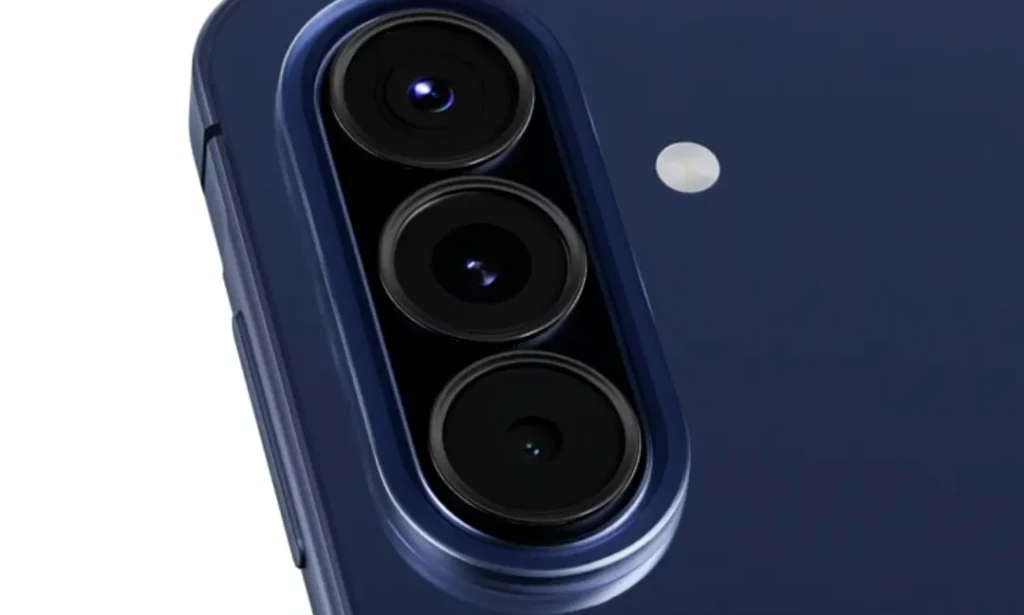
Samsung's Camera Assistant app has been available for Galaxy S, Z, and Note series owners for a while. Until now, buyers who picked up a more affordable Galaxy A or M series device were left out. That changes with the latest update. Samsung has officially expanded Camera Assistant support to cover eight new smartphones and five tablets, all requiring One UI 8.5 to access the feature.
The newly supported devices cover a wide range of the Galaxy lineup across two series.
Smartphones:
Galaxy A34, Galaxy A35, Galaxy A36, Galaxy A37, Galaxy A57, Galaxy M34, Galaxy M35, Galaxy M36
Tablets:
Galaxy Tab S9, Galaxy Tab S9 FE, Galaxy Tab S10, Galaxy Tab S10 FE, Galaxy Tab S11
These devices join the existing list of Camera Assistant-supported phones that already includes the Galaxy S26 and other flagship models. The key requirement across all newly added devices is that they must be running One UI 8.5. If your device has not received that update yet, Camera Assistant will not be accessible.
What Is Samsung Camera Assistant
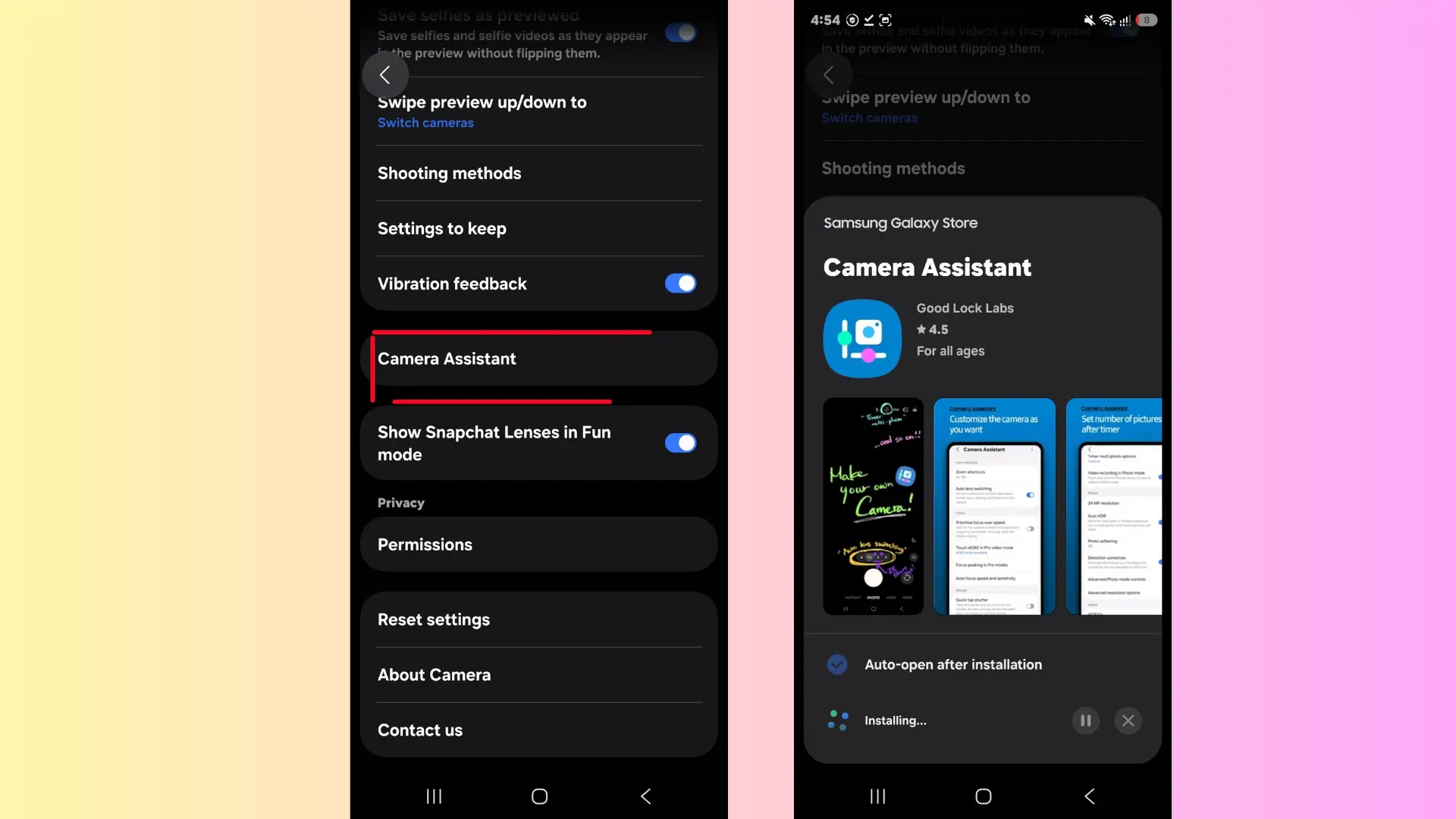
Camera Assistant is a downloadable app available through the Galaxy Store, sitting inside the Samsung Good Lock ecosystem alongside customization tools like QuickStar and Home Up. The app gives users granular control over how the camera hardware behaves, going well beyond the standard camera app settings.
To access it, open the Samsung camera app, go to Settings, and scroll down until Camera Assistant appears. If it is not installed yet, tapping it will prompt you to download it directly. Once installed, it opens a dedicated set of toggles and controls that work alongside the main camera app.
Camera Assistant Features Worth Using
Not every device gets access to the full toolkit. Some controls depend on what camera hardware your phone actually has. But across supported devices, these are the features that stand out.
Auto Lens Switching Control. By default, Samsung phones automatically switch between the wide and ultrawide cameras while recording video to keep the subject framed naturally. Turning this off gives you full manual control over which lens stays active throughout a recording.
Prioritize Focus Over Speed. This toggle makes the camera spend a bit more time acquiring focus before capturing a shot. The result is noticeably sharper detail, particularly in scenes with fine textures or low contrast. The trade-off is a slightly slower shutter response, so you need to keep the phone steady for a moment longer.
Focus Peaking. A tool borrowed from professional camera systems, Focus Peaking highlights the edges of objects in the viewfinder that are currently in sharp focus. It is especially useful for manual focus photography, giving you a clear visual confirmation of exactly where the camera is locking on.
Shutter Button Customization. Camera Assistant lets you reassign the long-press action on the shutter button in photo mode. By default, a long press captures burst shots. You can change it to start recording video instead, which is useful if you frequently switch between photo and video.
HDR10+ Toggle and Audio Monitoring. HDR10+ can be turned on or off depending on the scene and your storage preference. Audio monitoring lets you listen to what the microphone is picking up in real time through connected earphones during video recording, a practical tool for content creators.
Disable OIS. Optical Image Stabilization smooths out handheld footage, but some users specifically want the natural motion look when shooting action or sports content. Camera Assistant gives you the option to turn OIS off entirely.
Viewfinder Indicator Customization. The viewfinder on Samsung phones shows a row of status indicators at the top of the screen covering things like resolution, HDR status, and shooting mode. Camera Assistant lets you hide any indicator you do not need, keeping the shooting interface clean without permanently losing access to those settings.
How This Fits Into Samsung's Broader Customization Strategy
Camera Assistant is part of a wider philosophy Samsung has been building through One UI and Good Lock, giving users control over the phone experience beyond what standard settings menus allow. On the camera side, bringing Camera Assistant to Galaxy A and M series devices gives mid-range buyers a level of control that was previously available only to those spending significantly more on an S series device.
The expansion to tablets is equally meaningful. Shooting video or photos on a Galaxy Tab S10 or Tab S11 with Camera Assistant enabled gives tablet users the same granular control options, which matters most for creators who use tablets as their primary content capture device.

You must be logged in to post a comment.