
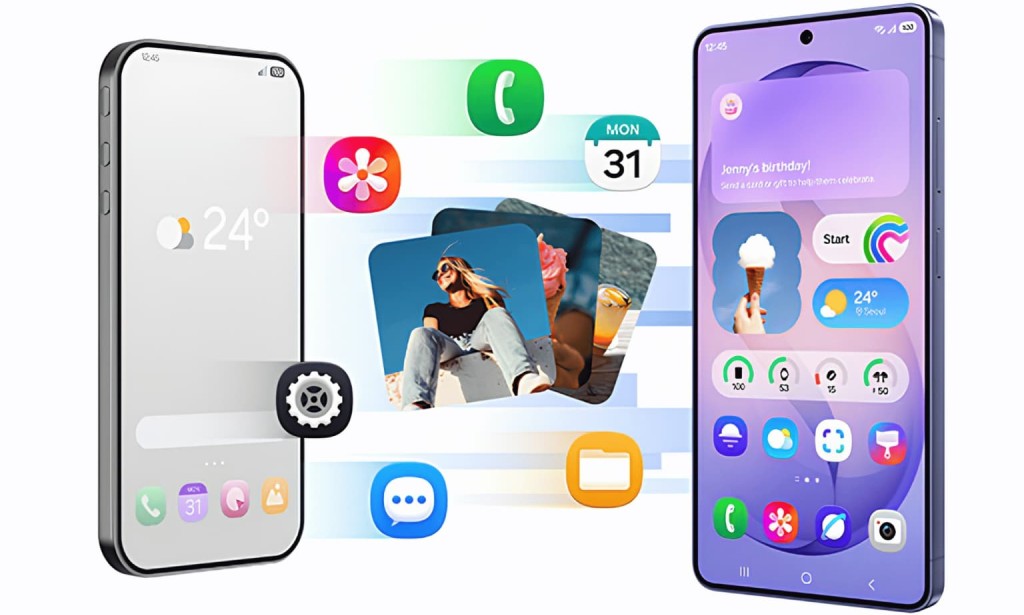
Changing your phone doesn't have to mean losing everything. Samsung has made the move to Galaxy smoother than most people expect.
There's a moment most of us know well you finally decide to upgrade your phone, and then the anxiety sets in. Where do your photos go? What about years of messages, saved contacts, and all those apps you rely on? It's the kind of friction that keeps people stuck with an older device long after they're ready to move on.
Samsung has clearly heard this concern. The Galaxy ecosystem now comes with a set of tools built specifically to remove that friction and for a growing number of people, they actually work.
Before You Even Buy: Try Galaxy First
One of the more practical things Samsung offers is a feature called Try Galaxy. It lets you preview the One UI experience directly on your current phone before you spend a single dollar. You can explore how the interface works, test key features, and get a feel for the day-to-day Galaxy experience without committing to anything.
For someone sitting on the fence between staying with their current phone or making the jump, this is genuinely useful. It simulates key features so you can decide with confidence, not guesswork.
The Actual Switch: Samsung Smart Switch
Once you've made the decision, the biggest hurdle is the data transfer. This is where Samsung Smart Switch does the heavy lifting.
Smart Switch moves your contacts, photos, messages, apps, calendars, settings and more from your old phone to your new Galaxy device. The experience is fast, step-by-step guided, and gives you three ways to do it wirelessly, with a cable, or from a cloud backup.
That flexibility matters more than it sounds. If your Wi-Fi is slow, use a cable. Prefer to restore at your own pace? Use a cloud backup. The choice is yours.
Switching from Android
If you're upgrading from another Samsung or Android device, the process is mostly seamless. You can send messages, app data, photos, and more. Some non-Samsung Android phones may require a manual transfer for certain data types due to compatibility differences, but the core content comes across without issue.
One thing to keep in mind apps sideloaded from outside the Play Store won't transfer. And nothing gets deleted from your old device during the process, so you're never working without a safety net.
Switching from iPhone
This is where most people expect things to fall apart. In reality, it holds up better than you'd think.
Using a USB or Lightning cable to directly connect your iPhone to your new Galaxy device gives you the most complete transfer contacts, photos, videos, and more come across cleanly. The cable method is the safer choice if you want to bring everything over.
Going through iCloud is faster in some cases, but you'll miss out on text messages, iMessages, browser bookmarks, and voice memos. If those matter to you, stick with the wired connection.
As for apps iOS apps aren't compatible with Android, so they won't transfer directly. Smart Switch handles this by searching for equivalent apps on the Galaxy Store or Google Play and suggesting alternatives automatically.
After the Switch: Quick Share
Once you're settled into Galaxy, day-to-day file sharing gets easier too. Quick Share is Samsung's built-in sharing feature that lets you send photos, videos, and files between Galaxy phones, tablets, and PCs quickly and without fuss, regardless of what platform the person on the other end is using.
It's a small thing, but once you start using it across devices, going back feels inconvenient.
What Actually Transfers
People always want to know exactly what makes it across. Here's the straightforward list:
- Contacts, call logs, and messages
- Photos, videos, and music
- Calendars and notes
- App data (Android to Galaxy)
- Wi-Fi passwords, wallpaper, and keyboard preferences
What doesn't transfer: iOS apps, sideloaded Android apps, and data tied specifically to Apple services like iMessage or FaceTime.
The Bottom Line
Switching phones used to mean starting over from scratch. That's no longer the reality with Samsung Galaxy. Between Try Galaxy letting you test-drive the experience beforehand, Smart Switch handling the heavy lifting of data migration, and Quick Share keeping things connected after the process it's faster, more complete, and more flexible than it's ever been.
If hesitation around the setup process has been holding you back, that reason has largely expired.

You must be logged in to post a comment.