
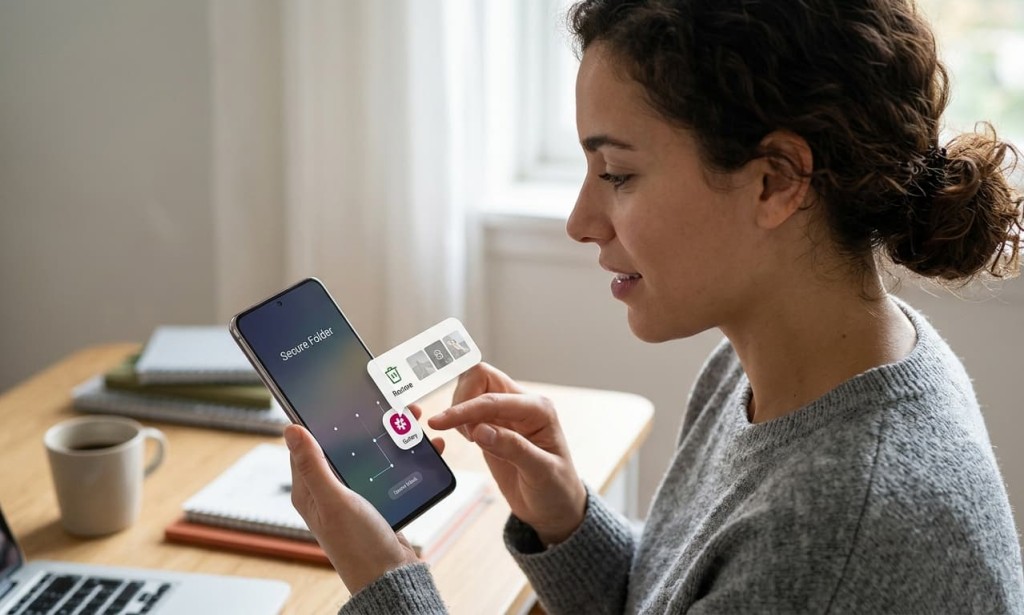
Losing photos from Samsung Secure Folder feels worse than losing regular photos. You put them there specifically because they mattered, and the locked nature of the folder creates an impression that everything inside is permanently protected. But deletion inside Secure Folder works differently from what most people expect and that difference is actually what makes recovery possible in more cases than you'd think.
This guide covers every legitimate recovery method, in order from most likely to work to least, along with honest explanations of what each method can and cannot do.
Understanding How Secure Folder Handles Deleted Photos
Before jumping into recovery steps, it's worth understanding how Secure Folder actually handles deletions because this changes which methods apply to your situation.
Secure Folder is a Knox-based encrypted space on your Samsung Galaxy phone. It operates as a completely separate environment from your main device storage. Apps inside Secure Folder, including the Gallery app, function independently. This means the Recycle Bin inside Secure Folder's Gallery is separate from the regular Gallery Recycle Bin. If you delete a photo inside Secure Folder, it goes to Secure Folder's own Recycle Bin not the one you'd normally check.
The good news is that this separation also means photos deleted from Secure Folder go through their own recovery pathway, and you have a 30-day window before they're permanently removed.
Method 1: Check the Recycle Bin Inside Secure Folder Gallery
This is where most people find their photos, and it should always be the first place you look.
Open Secure Folder on your Galaxy device and enter your authentication. Inside Secure Folder, open the Gallery app not the regular Gallery, but the one specifically within Secure Folder. Once you're in the Gallery, tap the three-line menu in the bottom right corner or the hamburger icon, then look for Recycle Bin in the menu options.
Photos deleted from Secure Folder stay in this Recycle Bin for 30 days before being permanently erased. If your photos are still within that window, they'll be here. Tap and hold to select the ones you want, then tap Restore.
One important note: if you've previously gone into Settings and reduced the Recycle Bin retention period, or disabled it entirely, this method won't help. But for most users with default settings, this is where the photos will be.
Method 2: Restore from Samsung Cloud Backup
Samsung Cloud can back up Secure Folder content, but only if you had this enabled before the photos were deleted. This is the step that most people wish they'd set up earlier.
To check whether a Samsung Cloud backup exists for your Secure Folder, open the Settings app on your device. Go to Accounts and backup, then tap Back up data under Samsung Cloud. Look for Secure Folder in the list of items being backed up. If it shows a backup date that's prior to when you deleted the photos, a restoration may be possible.
Restoring from Samsung Cloud for Secure Folder is done through Settings → Accounts and backup → Restore data → select your device → choose Secure Folder content → restore. Be aware that restoring from a backup will replace your current Secure Folder data with the backed-up version, so anything added to Secure Folder after the backup date will be overwritten.
If Samsung Cloud backup was never enabled for Secure Folder, this method won't work but it's worth checking before assuming it wasn't.
Method 3: Check Google Photos (If You Had Sync Enabled)
This one only applies in a specific situation: if you had previously moved photos from Secure Folder back to regular Gallery and then had Google Photos sync enabled, those images may have been uploaded to Google Photos before or after the move.
Photos that were inside Secure Folder and never moved out would not have been captured by Google Photos sync Secure Folder content is intentionally excluded from Google Photos automatic backup to maintain privacy. So if your photos never left Secure Folder, Google Photos won't have them.
However, if you moved photos out of Secure Folder at any point and Google Photos was running with backup enabled, check Google Photos and its Trash folder, which retains deleted items for 60 days.
Method 4: Check If You Have a Local Device Backup
If you back up your Samsung device to a PC using Smart Switch, those backups may include Secure Folder content depending on your backup settings. Connect your Galaxy phone to your computer, open Smart Switch, and look at your most recent backup.
Restoring from a Smart Switch backup is a full device restoration process, meaning it will roll back the entire phone to the state it was in when the backup was made. This is a significant step and should only be considered if the photos are genuinely irreplaceable and the backup predates the deletion.
It's also worth checking the date of your last Smart Switch backup before committing to this if the backup was made after you deleted the photos, it won't contain them.
Method 5: Contact Samsung Support
If the Recycle Bin window has passed and no backup exists, reaching out to Samsung Support is worth attempting. Samsung's support team can sometimes check whether anything exists at the Knox or account level that could assist with recovery.
This is not guaranteed to yield results Knox encryption is deliberately designed to prevent unauthorized data access, which is the same property that makes unauthorized recovery difficult even for Samsung. But if the photos are critical, it's worth making the call or starting a chat through Samsung Members or Samsung's official support page.
What Probably Won't Work Third-Party Recovery Apps
This is important to address directly because a lot of articles recommend third-party data recovery software for this situation. The honest answer is that these tools are unlikely to work for Secure Folder specifically.
Secure Folder data is stored in an encrypted Knox partition. Third-party recovery apps that scan raw storage sectors cannot read encrypted Knox partitions without the encryption key. Even if they detect that data once existed in that area, they cannot reconstruct the files in a readable format. Apps claiming to recover Secure Folder photos directly should be treated with caution the technical barrier of Knox encryption is not something these tools can bypass.
How to Prevent This From Happening Again
Once you've resolved the immediate situation, a few settings changes will protect you going forward.
First, make sure Samsung Cloud backup is enabled for Secure Folder. Go to Settings → Accounts and backup → Back up data → turn on Secure Folder and set it to back up regularly. Samsung Cloud offers 15GB of free storage, and Secure Folder content is included within that allowance.
Second, keep the Recycle Bin enabled in Secure Folder Gallery and leave the retention period at the default 30 days. Reducing this to save storage means less recovery time if photos are accidentally deleted.
Third, if you use Smart Switch, perform regular backups to your PC. This creates an additional layer of protection that doesn't depend on cloud connectivity or account access.

You must be logged in to post a comment.