
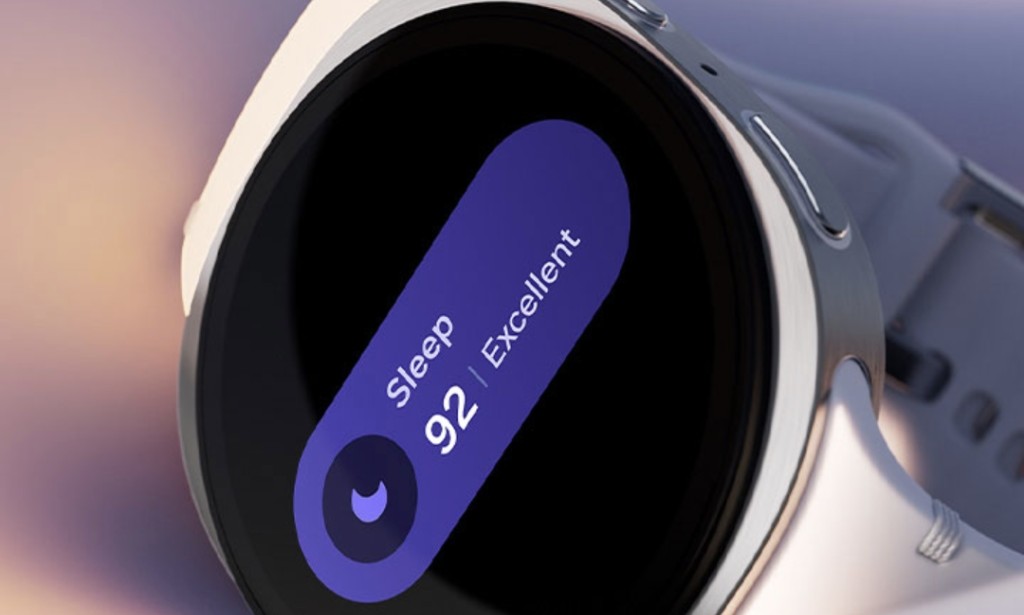
Your Samsung Galaxy Watch is capable of far more than it shows you straight out of the box. Samsung ships the Galaxy Watch with several of its most powerful features switched off by default, which means most users are walking around with a significantly less capable smartwatch than they actually paid for. Here are five features worth enabling immediately and exactly where to find each one.
1. Mute Notifications on Phone, The Smart Silent Mode You Never Knew Existed
This is one of the most practical Galaxy Watch features that almost nobody knows about, and it works in a surprisingly intelligent way. When switched on, your phone automatically goes silent while you are wearing your watch because if the watch is on your wrist, you will feel and see notifications there anyway. The clever part is what happens when you take the watch off: your phone automatically reverts to its previous sound setting on its own.
No more forgetting to unmute after leaving your watch at home. No more manually toggling your phone between silent and normal. The watch handles it all.
To enable it, open the Galaxy Wearable app on your phone and go to Watch Settings → Notifications → Mute notifications on phone.
2. Universal Gestures, Navigate Your Watch Without Touching the Screen
Most Galaxy Watch owners know about the double pinch gesture, but Samsung has built an entire gesture control system called Universal Gestures that almost nobody bothers to explore. This feature lets you navigate and control the complete watch interface using only hand movements without touching the display at all.
You can assign specific actions to five different gestures, choosing from a list that covers everything from swiping between screens to launching recent apps. It is a genuinely powerful tool for situations where your other hand is occupied during a workout, while cooking, or when carrying something heavy.
To set it up, go to Settings → Accessibility → Interaction and dexterity → Universal gestures. Keep in mind that the pattern lock security method cannot be used while this feature is active.
3. Continuous Heart Rate Tracking Stop Missing What Happens Between Measurements
Out of the box, your Galaxy Watch checks your heart rate once every 10 minutes. For most casual users that is probably sufficient, but if you genuinely care about understanding your cardiovascular health, ten-minute gaps leave a lot of information on the table.
Switching to continuous heart rate monitoring gives you an unbroken record of how your heart rate behaves throughout the entire day every spike during stress, every dip during rest, every recovery after movement. The only trade-off is a slight reduction in battery life, which for most people is a worthwhile exchange for significantly richer health data.
To change it, go to Settings → Health → Heart rate → Measure continuously.
4. Fall Detection, A Feature That Can Genuinely Save Your Life
Fall detection has been available on Galaxy Watches since before Samsung switched to Wear OS, yet the vast majority of users have never turned it on. The feature uses an algorithm to identify when the wearer takes a hard fall. If a fall is detected and the wearer stays motionless for a short period afterward, the watch triggers a loud alert, calls emergency numbers, and sends an SOS message to pre-selected contacts.
A swipe confirmation can be required before any emergency call goes through, preventing false alarms from triggering real responses. For older adults, people with mobility issues, or anyone who spends time alone in physically demanding environments, this is one of the most important settings on the entire watch.
To turn it on, go to Settings → Safety and emergency → Hard fall detection.
5. Automatic Watch Face Changes With Samsung Modes, Samsung Phone Users Only
This feature requires a Samsung Galaxy phone, but for those who have one it is one of the most underrated things the entire ecosystem can do. Samsung's Modes and Routines app lets you create situation-specific profiles Work, Exercise, Driving, Home, and more that automatically adjust your phone's settings, layout, and appearance based on what you are doing. When a Galaxy Watch is connected, you can add automatic watch face changes to these modes as well.
As a practical example, an Exercise mode could switch your watch face to a fitness layout showing heart rate, pace, and workout timer the moment you start tracking a run. When the session ends and you shift into a Home mode, the watch face can change back to something minimal and clean automatically. The system is flexible enough to build around almost any daily routine.
To set it up, open Modes and Routines on your Samsung phone, select or create a mode, and choose Watch face from the Change appearance section.
Why Are These Features Off by Default?
Samsung disables these features at launch for understandable reasons. Continuous heart rate monitoring affects battery life. Fall detection needs emergency contacts configured before it can work properly. Universal Gestures conflicts with certain lock screen security methods. And the Modes integration only works with Samsung phones connected. Rather than overwhelming new users with these trade-offs from day one, Samsung leaves the choice to the individual which unfortunately means most people never discover them at all.
Taking just ten minutes to go through your Galaxy Watch settings and enable the features that fit your lifestyle can make a genuine difference in how useful the watch feels every single day.

You must be logged in to post a comment.